
Verwandte Artikel zu Linux & Unix Shell Programming
Inhaltsangabe
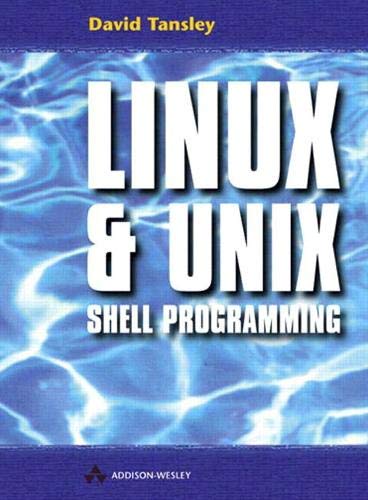
Learn how to create and develop shell scripts in a step-by-step manner increasing your knowledge as you progress through the book. Learn how to work the shell commands so you can be more productive and save you time.
Die Inhaltsangabe kann sich auf eine andere Ausgabe dieses Titels beziehen.
Über die Autorin bzw. den Autor
David Tansley has many years’ experience in UNIX, and more recently Linux, as a systems administrator on a variety of platforms, and is currently a Systems and Database Administrator at Ace Global Markets, a Lloyds of London Underwriting Agency.
Von der hinteren Coverseite
This comprehensive book is a practical, easy-to-use guide to programming and using the Bourne shell for beginners and experienced users - the Bourne shell is the standard shell for UNIX, and is also fully backward compatible to the Linux BASH shell. This book will fully illustrate the ability of the shell to unlock the real potential of UNIX and Linux, and aims to get the reader up, running and creating robust shell scripts for real tasks and situations as quickly as possible – shell scripts that will work on any mainstream UNIX or Linux machine.
If you are new to UNIX and Linux or if you are a power user in waiting then this book is for you. Most shell programming books merely annotate manual pages and syntax , but in this book users of all abilities will find plenty of practical working examples - all of which are available as full code script via an ftp site – as well as a host of tips, tricks and code one-liners, that will save you time on a day-to-day basis. The book is organized into self-contained chapters on individual topics for ease of reference.
Auszug. © Genehmigter Nachdruck. Alle Rechte vorbehalten.
Chapter 1 File security and permissions To stop unwanted users accessing your files, you can set permission bits on them, and on your directories. You can also specify what type of permissions the files get when they are created: this is just a small part of system security. We will not concern ourselves with the big security picture, just the files and directory part. This chapter will cover: permissions on files and directories; the setuid; chown and chgrp; umask; and symbolic links. A file is owned by the user who created it and the group the user belongs to. That user alone can then specify who can read, write and execute that file. Of course, root or the system administrator can override anything that a mere mortal user does. A file when created can be accessed in three ways: 1. By reading, so you can cat/display the file. 2. By writing, so you can edit or delete it. 3. By executing, if the file contains a script or is a program. Permissions of a file are grouped into three different types: 1. Owner, who actually owns the file 2. Group, who is any user who belongs to that group. 3. Other, i.e. someone outside the group. 1.1 Files When you create a file the system stores all the information you could ever want to know about it, including: The location of the file; File type; File size; Who owns it and can access it; The inode; Time last modified; and The permission bits of the file. Let's look at a typical file listing, using the ls -l command: $ ls -l total 4232 -rwxr-xr-x 1 root root
3756 Oct 14 04:44 dmesg -r-xr-xr-x 1 root root
12708 Oct 3 05:40 ps -rwxr-xr-x 1 root root
5388 Aug 5 1998 pwd .... If we go through the output of the first two lines a step at a time, we can break down the information ls -l gives us. total 4232 This field tells us how much space the files have taken up in the directory. -rwxr-xr-x This is the permission bits on the file. If you count all the characters excluding the first `-', you'll see that there are in fact nine of them. There is a good reason for this, as I mentioned earlier, you can specify who can access the files. These are put into the following categories (or sets): rwx user these are the first three bits r-x group these are the second three bits r-x other or the rest of the world these are the last three bits We'll go over these permission bits in more detail later on. A dash `-' (in place of r, w, x) within these sets means those rights have been taken away or revoked. 1 This is the number of hard links the file has. root This is who owns the actual file. root This is the default group that root belongs to (also called root!). 3578 This is the file's size in bytes, not kilobytes! Oct 14 04:44 This is the date of the last time the file was modified. dmesg The actual file name. 1.2 Types of files Remember I said to exclude the first dash when looking at the file permissions? Well, here's what the first dash means. A file can be one of seven types, designated by the first character when you do a ls -l command. The types are as follows: d This is a directory. l This is a symbolic link (a pointer to another file). s This is a domain socket. b This is a special block file. c This is a character special file. p This is a named pipe file. - This is a normal file or, more accurately, none of the above. 1.3 Permissions Let's create a file using the touch command $ touch myfile Now do an ls -l on the directory $ ls -l -rw-r--r-- 1 dave
admin
0 Feb 19 22:05 myfile We have created an empty file, and as expected the first dash tells us that we have an ordinary file. You'll find that most of your file creations will be for ordinary files and symbolic links (more on symbolic links later). User permissions Group permissions Other permissions r w - r - - r - - The next three permission bits (rw-) are your permissions, the owner of the file. The following (r--) are the group permissions that you belong to, in this casethe group admin. The last three (r--) are the rest of the world, or anybody else. My default group admin, of which I am a member, is also displayed. Let's now look more closely at the file myfile, to see what the actual permissions mean. Table 1.1 Breakdown of the example listing (first character) - Ordinary file. (next three characters) r w - These are the owner permissions. (next three characters) r - - These are the groups. (the last three characters) r - - These are for anybody else. So each set of three characters (excluding the first) defines: 1. Permissions for the owner of the file. 2. Permissions of the default group you belong to (a user can belong to many groups). 3. Permissions for anybody else on the system. For each of these sets we have the following set permissions. r You can read this file. w You can write/amend this file. x You can execute this script or program. Or to display the permissions in another form for the file myfile: - r w- r-- r- - Type of file is ordinary Owner can read and write Group can read Other can read You may have noticed that the file myfile wasn't created with the execute permission for the owner, the system will not let you create any file with this permission bit set. This is due to the security enforced by the system. You have to change this manually: you'll see why you don't get execute permission when we deal with the umask command later. However, you can set the execute bit on directories, but these have a slightly different meaning, which we will discuss later as well. Understanding all these permission bits can be a bit confusing, so let's look at some examples (see Table 1.2). To confuse you more, if the owner has only a read bit set, he can still write to it using file re-direction. Deleting a file is also dependent on the directory bits, as we shall see in a moment. 1.4 Changing permission bits You can change the permission bits of files you own to whatever you feel comfortable with. You have to ask yourself which users need access to your files (and this also includes directories that you own). You can change the permission bits using the command chmod. This command can be used in a short way using the absolute mode or a long way using the symbolic mode. We'll look at the symbolic mode first. 1.4.1 Symbolic mode The general format of the chmod command is chmod [who] operator [permissions] filename who means: u The user permissions g The group permissions o The other permissions a Means all (user, group and other) operator means: + Add a permission - Take away a permission = Set permissions permission means: r Read permission w Write permission x Execute permission s User or group set-ID t Sticky bit* l Lock the file, other users cannot access it u,g,o Take away from the user, group, other * Occasionally you may see the t when you do a listing on a file or directory. The t stands for the `sticky bit'. If you see a `t' on a directory this means only the owner of the files contained in that directory can delete them, even if a member of a group has the same rights as the owner. But some systems are quite forgiving on this rule. If you see a `t' on a file listing, then this means that once the script or program has been run it is to be kept in swap (virtual memory). As memory is so cheap nowadays you can pretty much ignore the use of `t' on files. 1.4.2 chmod examples Let's now see some examples of using the chmod command. Assuming we start off with a file with the following permissions, rwx rwx rwx This command Produces this Which means chmod a-x myfile rw- rw- rw- Take away all execute permissions chmod og-w myfile rw- r--r-- Take away write from group and other chmod g+w myfile rw- rw-r-- Add write to group chmod u+x myfile rwx rw-r-- Add execute to owner chmod go+x myfile rwx rwx r-x Add execute to group and other When I created the file myfile it had the following permissions: -rw-r--r-- 1 dave
admin
0 Feb 19 22:05 myfile If I now create a script within that file, and I want...
„Über diesen Titel“ kann sich auf eine andere Ausgabe dieses Titels beziehen.
Suchergebnisse für Linux & Unix Shell Programming

Beispielbild für diese ISBN
LINUX and UNIX Shell Programming
Verlag:
Pearson Education Limited, 2000
ISBN 10: 0201674726
ISBN 13: 9780201674729
Gebraucht
Paperback
Anbieter: World of Books (was SecondSale), Montgomery, IL, USA
Verkäuferbewertung 5 von 5 Sternen

Paperback. Zustand: Very Good. Learn how to create and develop shell scripts in a step-by-step manner increasing your knowledge as you progress through the book. Learn how to work the shell commands so you can be more productive and save you time. Bestandsnummer des Verkäufers 00109710977
Gebraucht kaufen
EUR 31,41
Versand gratis
Versand innerhalb von USA
Versand innerhalb von USA
Anzahl: 1 verfügbar
Beispielbild für diese ISBN
LINUX and UNIX Shell Programming
Verlag:
Pearson Education Limited, 2000
ISBN 10: 0201674726
ISBN 13: 9780201674729
Gebraucht
Paperback
Anbieter: World of Books (was SecondSale), Montgomery, IL, USA
Verkäuferbewertung 5 von 5 Sternen
Paperback. Zustand: Good. Learn how to create and develop shell scripts in a step-by-step manner increasing your knowledge as you progress through the book. Learn how to work the shell commands so you can be more productive and save you time. Bestandsnummer des Verkäufers 00110777391
Gebraucht kaufen
EUR 31,41
Versand gratis
Versand innerhalb von USA
Versand innerhalb von USA
Anzahl: 1 verfügbar
Beispielbild für diese ISBN
LINUX and UNIX Shell Programming
Verlag:
Pearson Education, Limited, 2000
ISBN 10: 0201674726
ISBN 13: 9780201674729
Gebraucht
Softcover
Anbieter: Better World Books: West, Reno, NV, USA
Verkäuferbewertung 5 von 5 Sternen
Zustand: Very Good. Pages intact with possible writing/highlighting. Binding strong with minor wear. Dust jackets/supplements may not be included. Stock photo provided. Product includes identifying sticker. Better World Books: Buy Books. Do Good. Bestandsnummer des Verkäufers 4912447-6
Gebraucht kaufen
EUR 31,83
Versand gratis
Versand innerhalb von USA
Versand innerhalb von USA
Anzahl: 1 verfügbar
Beispielbild für diese ISBN
LINUX and UNIX Shell Programming
Verlag:
Pearson Education, Limited, 2000
ISBN 10: 0201674726
ISBN 13: 9780201674729
Gebraucht
Softcover
Anbieter: Better World Books, Mishawaka, IN, USA
Verkäuferbewertung 5 von 5 Sternen
Zustand: Good. Former library copy. Pages intact with minimal writing/highlighting. The binding may be loose and creased. Dust jackets/supplements are not included. Includes library markings. Stock photo provided. Product includes identifying sticker. Better World Books: Buy Books. Do Good. Bestandsnummer des Verkäufers 5495698-6
Gebraucht kaufen
EUR 31,83
Versand gratis
Versand innerhalb von USA
Versand innerhalb von USA
Anzahl: 1 verfügbar
Beispielbild für diese ISBN
Linux and Unix Shell Programming
Verlag:
Addison-Wesley (edition 1), 1999
ISBN 10: 0201674726
ISBN 13: 9780201674729
Gebraucht
Paperback
Anbieter: BooksRun, Philadelphia, PA, USA
Verkäuferbewertung 5 von 5 Sternen
Paperback. Zustand: Very Good. 1. It's a well-cared-for item that has seen limited use. The item may show minor signs of wear. All the text is legible, with all pages included. It may have slight markings and/or highlighting. Bestandsnummer des Verkäufers 0201674726-11-1
Gebraucht kaufen
EUR 32,74
Versand gratis
Versand innerhalb von USA
Versand innerhalb von USA
Anzahl: 1 verfügbar
Beispielbild für diese ISBN
LINUX and UNIX Shell Programming
Verlag:
Pearson Education Limited, 2000
ISBN 10: 0201674726
ISBN 13: 9780201674729
Gebraucht
Paperback
Anbieter: World of Books Inc, Montgomery, IL, USA
Verkäuferbewertung 4 von 5 Sternen

Paperback. Zustand: Good. Learn how to create and develop shell scripts in a step-by-step manner increasing your knowledge as you progress through the book. Learn how to work the shell commands so you can be more productive and save you time. Bestandsnummer des Verkäufers CIN0201674726G
Gebraucht kaufen
EUR 33,24
Versand gratis
Versand innerhalb von USA
Versand innerhalb von USA
Anzahl: 1 verfügbar
Beispielbild für diese ISBN
Linux and Unix Shell Programming
Anbieter: Zoom Books Company, Lynden, WA, USA
Verkäuferbewertung 5 von 5 Sternen
Zustand: very_good. Book is in very good condition and may include minimal underlining highlighting. The book can also include "From the library of" labels. May not contain miscellaneous items toys, dvds, etc. . We offer 100% money back guarantee and 24 7 customer service. Bestandsnummer des Verkäufers ZBV.0201674726.VG
Gebraucht kaufen
EUR 33,27
Versand gratis
Versand innerhalb von USA
Versand innerhalb von USA
Anzahl: 1 verfügbar
Beispielbild für diese ISBN
Linux and Unix Shell Programming
Anbieter: Bay State Book Company, North Smithfield, RI, USA
Verkäuferbewertung 5 von 5 Sternen
Zustand: good. The book is in good condition with all pages and cover intact, including the dust jacket if originally issued. The spine may show light wear. Pages may contain some notes or highlighting, and there might be a "From the library of" label. Boxed set packaging, shrink wrap, or included media like CDs may be missing. Bestandsnummer des Verkäufers BSM.1AX23
Gebraucht kaufen
EUR 33,43
Versand gratis
Versand innerhalb von USA
Versand innerhalb von USA
Anzahl: 1 verfügbar
Beispielbild für diese ISBN
Linux and Unix Shell Programming
Anbieter: HPB-Red, Dallas, TX, USA
Verkäuferbewertung 5 von 5 Sternen
paperback. Zustand: Good. Connecting readers with great books since 1972! Used textbooks may not include companion materials such as access codes, etc. May have some wear or writing/highlighting. We ship orders daily and Customer Service is our top priority! Bestandsnummer des Verkäufers S_372845821
Gebraucht kaufen
EUR 31,41
EUR 3,33 Versand
Versand innerhalb von USA
Versand innerhalb von USA
Anzahl: 1 verfügbar
Beispielbild für diese ISBN
Linux and Unix Shell Programming
Anbieter: ThriftBooks-Atlanta, AUSTELL, GA, USA
Verkäuferbewertung 5 von 5 Sternen
Paperback. Zustand: Very Good. No Jacket. May have limited writing in cover pages. Pages are unmarked. ~ ThriftBooks: Read More, Spend Less. Bestandsnummer des Verkäufers G0201674726I4N00
Gebraucht kaufen
EUR 35,08
Versand gratis
Versand innerhalb von USA
Versand innerhalb von USA
Anzahl: 1 verfügbar